

GUESS THE SPORTS
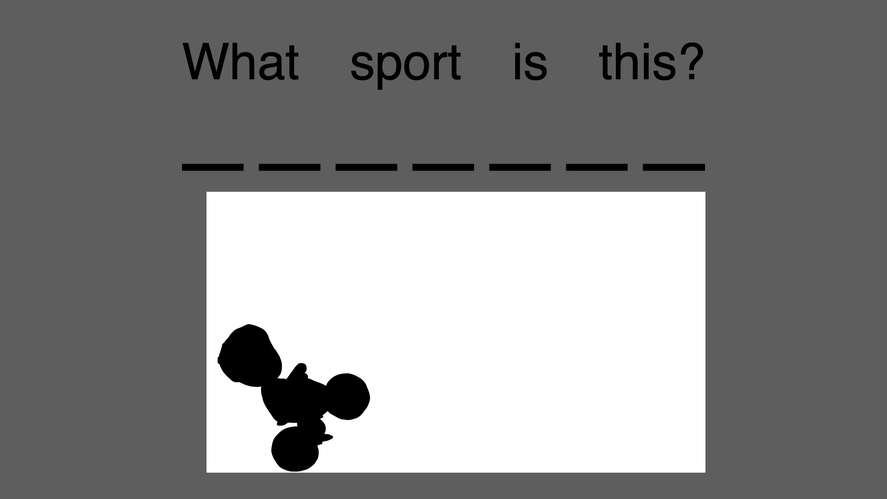
Students test their vocabulary and sports knowledge by guessing different sports from silhouettes and spelling them out using interactive Apple Keynote presentations on iPad.
1. Lesson Overview
- School Level: Malaysian Primary School
- Subject: English Language / Physical and Health Education
- Year / Form: Year 3 (Primary 3)
- Topic / Unit: Unit: World of Knowledge – Out and About (Sports and Play)
- Curriculum Alignment: DSKP English Language Year 3 (SK) — Content Standard: 3.2 (Understand a variety of linear and non-linear print and digital texts by using appropriate reading strategies); Learning Standard: 3.2.2 (Understand specific information and details of short simple texts).
- Duration: 60 minutes (1 hour)
- Apple Technology: iPad, Apple Pencil
- Apps Used: Keynote
2. Learning Objectives
By the end of the lesson, students will be able to:
- Identify at least 4 common sports based on visual silhouettes (shadows).
- Spell the target sports vocabulary words accurately.
- Construct simple sentences describing sports preferences using an interactive digital presentation.
3. About the Learning Activity
Students will explore a digital "Guess the Sports" interactive Keynote presentation. They will look at shadow clues, decode the hidden names using letter blanks, investigate sports movements, and ultimately design their own mini "Guess the Sport" interactive slides using Apple Keynote to test their classmates.
4. Learning Activity
- Explore:
- The teacher launches the "GUESS THE SPORTS" interactive Keynote presentation on the main display.
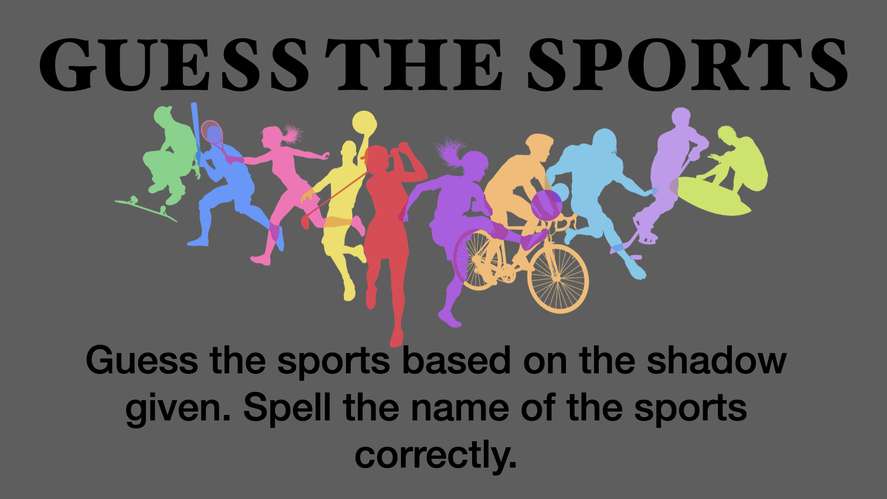
- As a whole class, students look at Slide 1 and review the rules: guess the sports based on the shadow given and spell the names correctly.
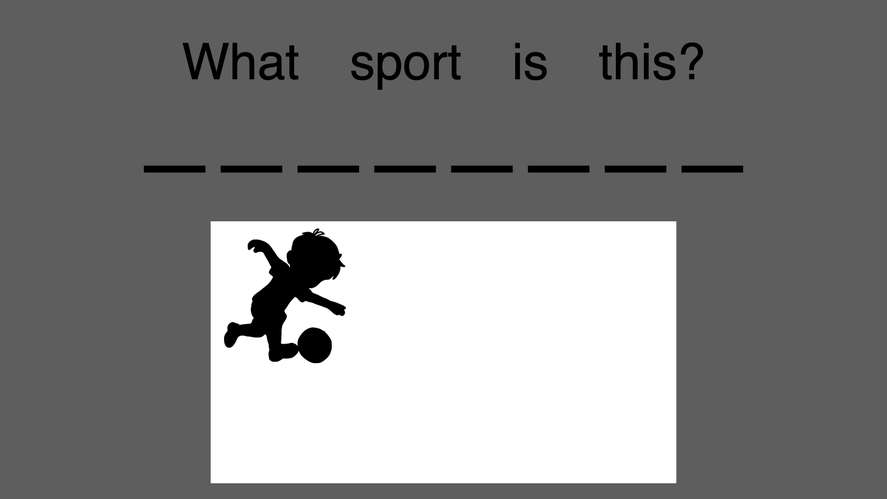
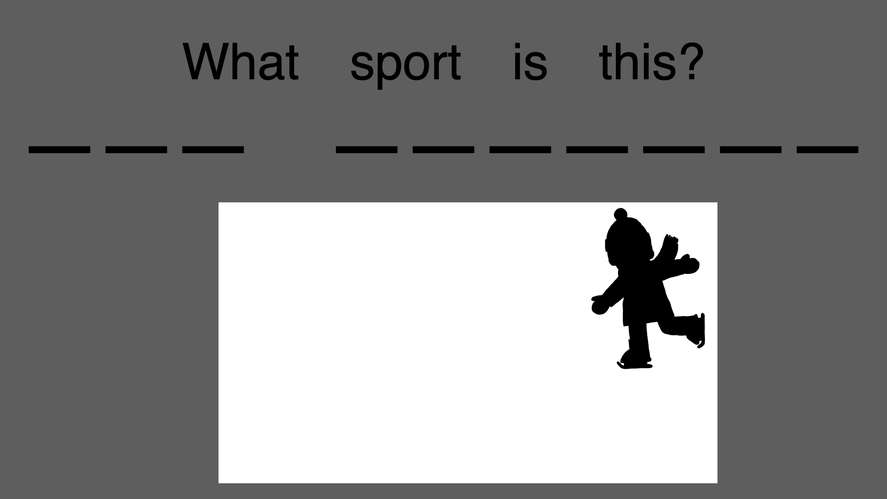
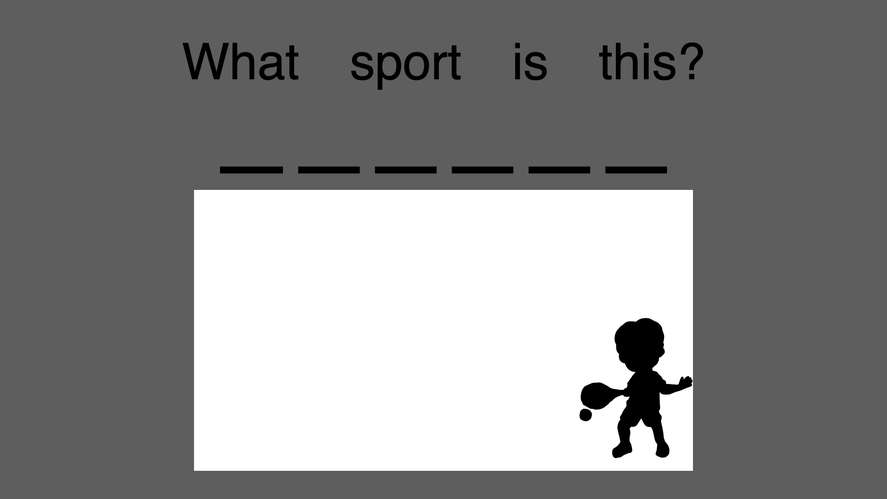
- Students examine the silhouettes (e.g., football, ice skating, badminton/tennis, cycling) and discuss the physical movements associated with each.
- Create:
- Students work in pairs using individual iPads to go through the interactive Keynote activity slides.
- Using the keyboard or Apple Pencil (via Scribble), students fill in the blanks for each sport shown in the silhouettes.
- Extension Task: Students use Keynote shapes, animations, and the instant alpha background removal tool to create their own custom "Guess the Sport" slide featuring a new sport of their choice.
- Share & Reflect:
- Pairs swap iPads with another group to play through each other's custom-built mini-quizzes.
- A brief class discussion follows, focusing on spelling strategies, favourite sports, and how visual clues helped them solve the puzzles.
5. Learning Materials
- Hardware: Teacher iPad/Mac, Student iPads (1:1 or shared pairs), Apple Pencils.
- Software: Apple Keynote app.
- Downloadable Resources: Guess_The_Sports_Activity_Template.key (Template containing shadow graphics, text boxes, and interactive transition links).
- Reference Links: Malaysian Ministry of Education (MOE) DSKP English Language Year 3 curriculum document.
6. Learning Outcomes & Assessment
- Formative Assessment: Evaluated through active participation during the whole-class guessing game and real-time observation of pairs completing the Keynote spelling tasks.
- Summative Assessment: Accuracy of completed student spelling sheets/slides and the creativity of the student-generated "Guess the Sport" bonus slide.
7. Reflection & Adaptation
- Support (Lower Proficiency): Provide a word bank on the board or side of the slide to assist with spelling (e.g., football, ice skating, badminton, cycling).
- Extension (Higher Proficiency): Challenge students to write a full sentence description for each sport instead of just single-word answers (e.g., "This is football. Players kick a ball into a goal.").
- Cross-Curricular Link: Can be integrated with Physical Education (PJ) to discuss rules, fitness benefits, and equipment safety for each sport.






Attach up to 5 files which will be available for other members to download.