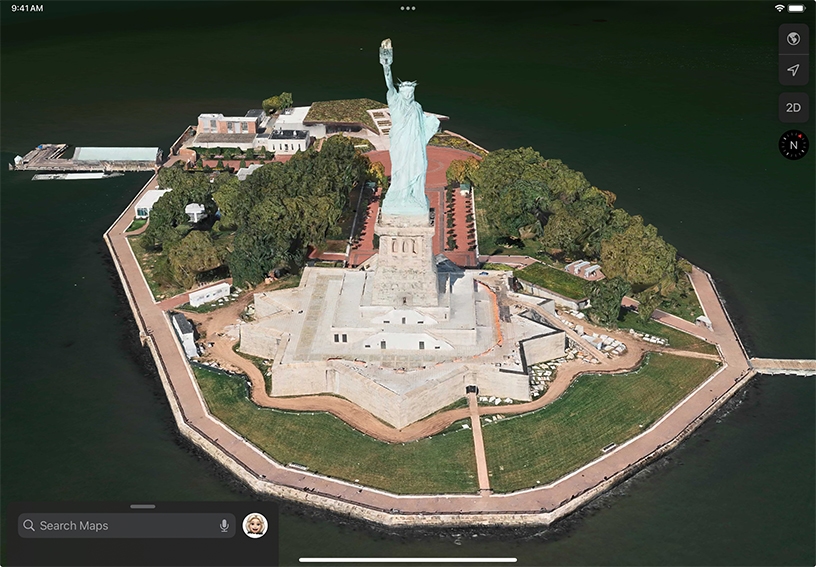
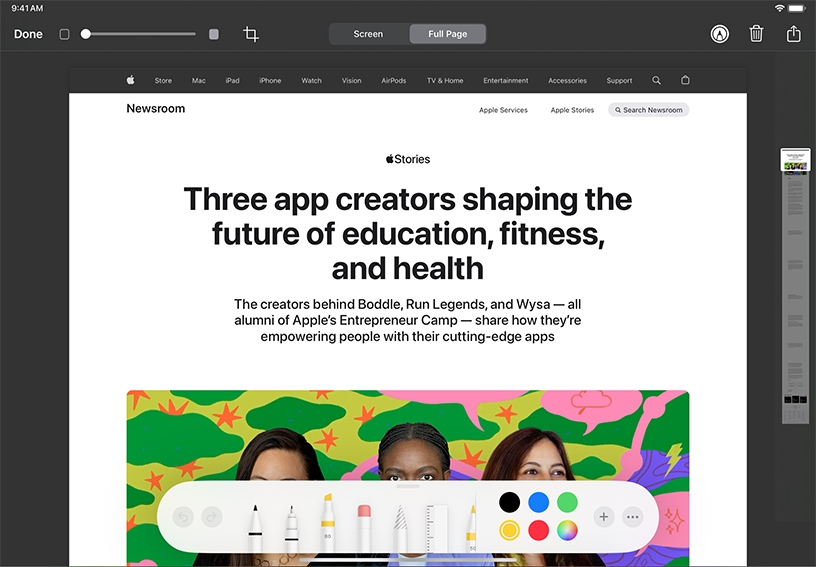
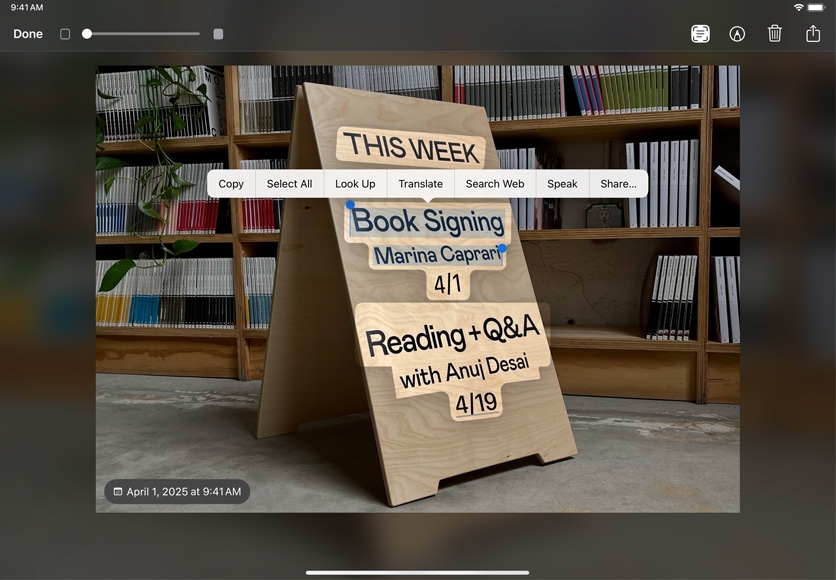
Take a screenshot. Quickly press and release the top button and either volume button at the same time. Tap the screenshot thumbnail to open and edit it.
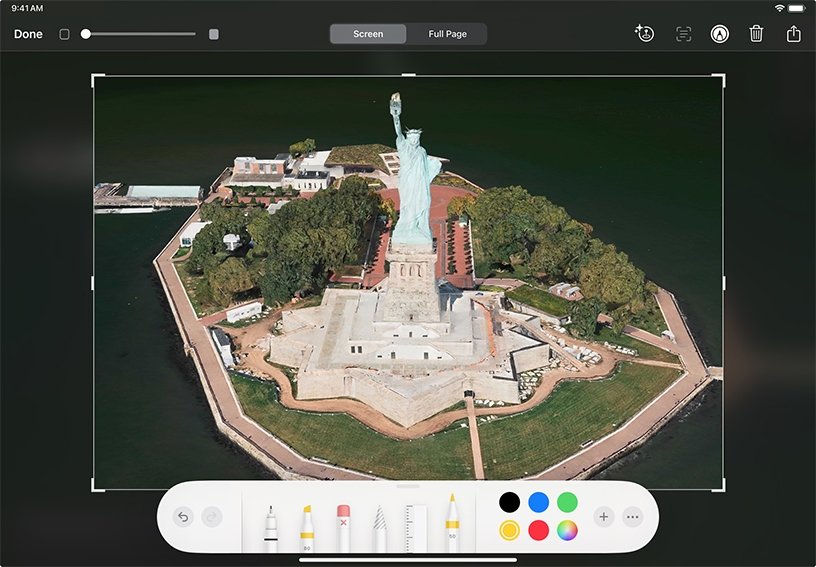
Crop your screenshot. Drag the handles on the cropping rectangle or pinch the image open or closed.
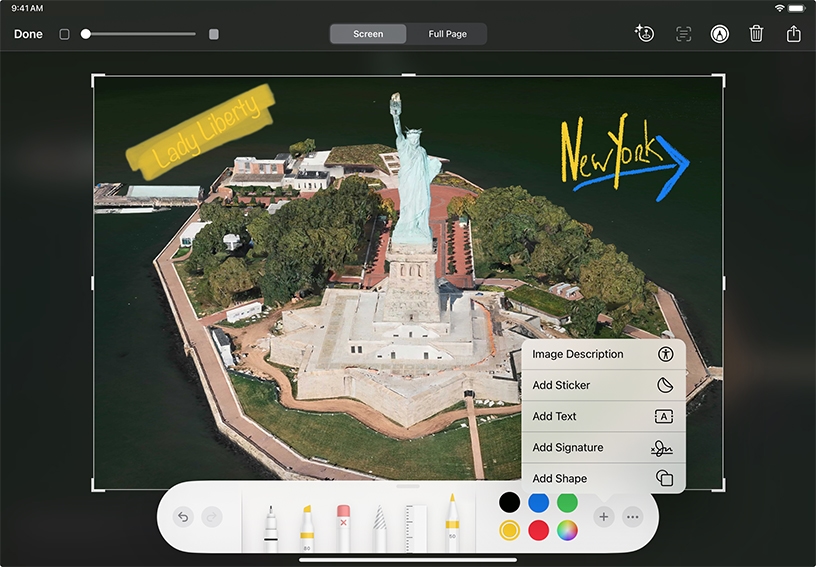
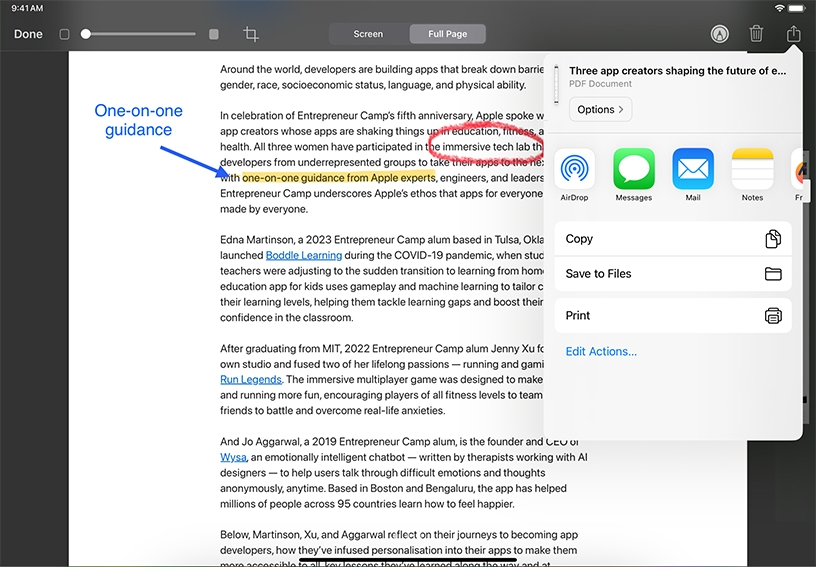
Use the Markup tools to add text or a drawing. Tap Add  to add an image description, a sticker, a text box, a signature or a shape.
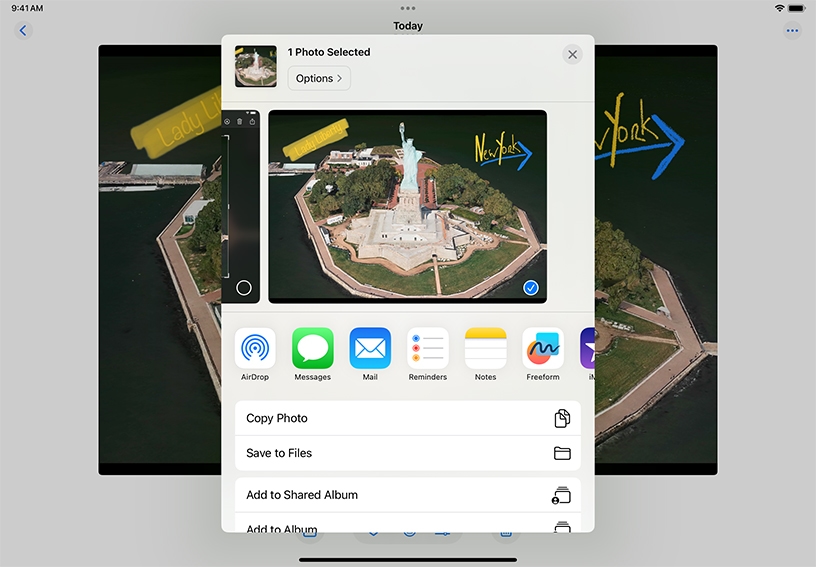
Save and share your screenshot. Tap Done, then Save to Photos. In Photos, open the screenshot, tap Share  and choose a method for sending.
Create a full-page PDF. Take a screenshot of a web page or Pages document containing multiple pages. Tap the screenshot thumbnail to open it. Tap Full Page, tap Done, then tap Save PDF to Files, choose a location and tap Save. This captures the entire document – the full web page, for example – not just the portion that was visible onscreen.
Annotate the PDF. Use the Markup tools to add text, highlighting or other annotations to any part of the PDF. Tap Done, tap Save to Files, choose a location and tap Save.
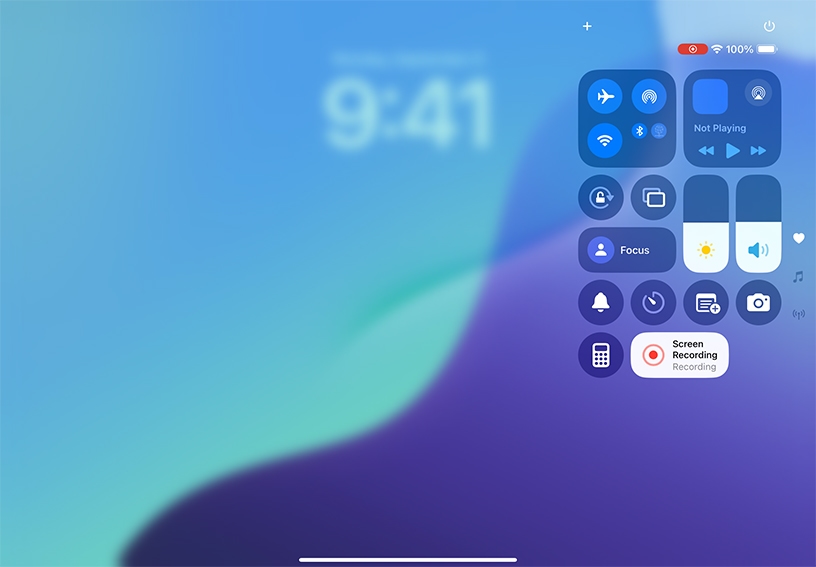
Make a video recording of your screen. Open Control Centre, tap Screen Recording  to start recording, then exit Control Centre. Tap Record Screen in the status bar at the top of the screen to end the recording.
  The recording is saved to your Photos library, where you can edit and trim it.