

1. What Will You Create?
In this tutorial, educators will learn how to create a Sound Detective digital learning activity inspired by Gulliver’s Travels graphic novel. The completed resource will feature animated sound words, audio effects and visual prompts that encourage pupils to identify sounds, imagine situations and express emotions. The resource can be used as a listening and speaking activity during a Year 4 Language Arts lesson.
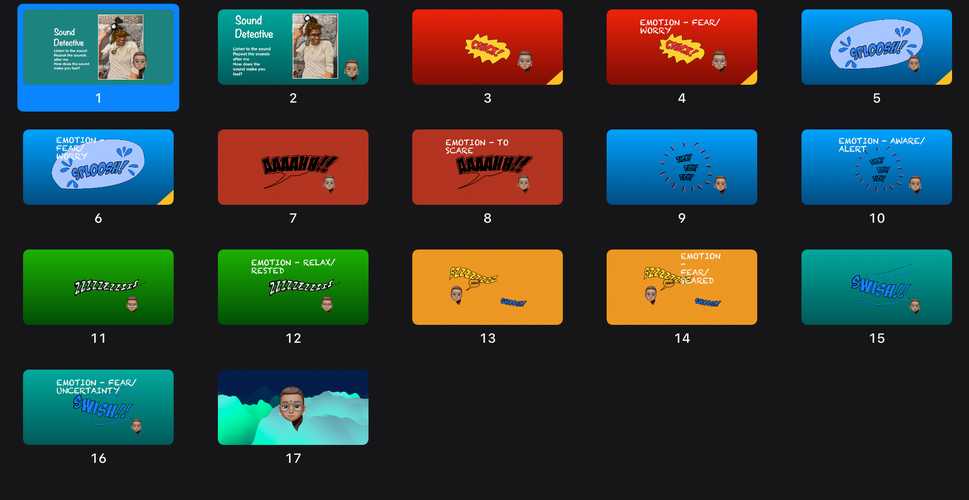
2. Tools & Requirements
• School Level: Malaysian Primary School
• Target Learners: Year 4
• Device: iPad
• Applications: Keynote, GarageBand and iMovie
• Additional Resources: Graphic novel illustrations, sound-effect recordings, images and audio prompts.
• Skill Level: Beginner
• Estimated Creation Time: 45–60 minutes
3. Step-by-Step Creation Guide
Step 1: Plan Your Learning Activity
Identify the learning objectives and decide which sounds are appropriate for your lesson.
For the Gulliver’s Travels activity, select onomatopoeic words such as:
• SPLASH!
• TICK-TOCK!
• ZZZZ!
• SWISH!
• BOOM!
Consider the actions, situations and emotions that each sound might represent.
Step 2: Prepare Your Learning Materials
Collect suitable illustrations from the graphic novel and prepare your sound-effect word bank.
Organise your materials into three categories:
• Visuals: Character illustrations and backgrounds.
• Words: Onomatopoeic words in comic-style fonts.
• Audio: Sound effects and voice recordings.
Step 3: Create Using Keynote
1. Open Keynote on your iPad.
2. Select a suitable presentation theme.
3. Create an introductory slide titled “Sound Detective”.
4. Add character illustrations and colourful backgrounds.
5. Insert onomatopoeic words using large, bold fonts.
6. Use shapes, text boxes and speech bubbles to create a comic-book effect.
7. Add simple animations to make the sound words appear on screen.
Step 4: Add Interactive and Creative Elements
Use GarageBand to create or record suitable sound effects.
1. Open GarageBand.
2. Select an appropriate audio recording option.
3. Record your own sound effects or voice prompts.
4. Save the audio recordings for use in your activity.
You can also use your own voice to introduce each sound.
Combine the visual and audio elements to create an engaging listening experience.
Step 5: Test and Refine
Preview your presentation and check that:
• Sound effects match the displayed words.
• Text is large and easy to read.
• Animations are not too distracting.
• Audio is clear and audible.
• Instructions are simple enough for Year 4 pupils.
Encourage pupils to listen, repeat and respond to each sound.
Step 6: Export and Share
1. Export your Keynote presentation as a movie if you want to create a video-based resource.
2. Open iMovie and create a new movie project.
3. Import your exported presentation or recorded clips.
4. Add suitable audio, voice-over and transitions.
5. Preview the completed video.
6. Export the final movie and share it with pupils or colleagues.
4. Downloadable Resources
• Starter Template: Keynote Sound Detective presentation.
• Completed Example: Sound Detective – Gulliver’s Travels video.
• Additional Resources: Onomatopoeia word bank and selected graphic novel illustrations.
5. Tips for Educators
• Choose familiar sounds that pupils can easily recognise.
• Use large and colourful comic-style text.
• Keep audio clips short and clear.
• Encourage pupils to repeat the sounds aloud.
• Ask open-ended questions rather than simply asking pupils to identify the sounds.
• Connect sounds to characters, actions and emotions.
• Allow pupils to create their own sound effects for greater creativity and engagement.
6. Classroom Application
This resource can be incorporated into a Year 4 Language Arts lesson based on Gulliver’s Travels graphic novel. Teachers can begin by playing the Sound Detective video and asking pupils to listen carefully to the different sound effects. Pupils can then discuss what each sound represents and how it makes them feel. As an extension, pupils can create their own comic strips using onomatopoeic words and develop short digital cartoon stories using Keynote and iMovie. The activity supports DSKP Language Arts learning standards 5.2.1 and 5.3.1 through emotional responses to literary texts and imaginative cartoon-story creation.
5. Tips for Educators
• Choose familiar sounds that pupils can easily recognise.
• Use large and colourful comic-style text.
• Keep audio clips short and clear.
• Encourage pupils to repeat the sounds aloud.
• Ask open-ended questions rather than simply asking pupils to identify the sounds.
• Connect sounds to characters, actions and emotions.
• Allow pupils to create their own sound effects for greater creativity and engagement.
6. Classroom Application
This resource can be incorporated into a Year 4 Language Arts lesson based on Gulliver’s Travels graphic novel. Teachers can begin by playing the Sound Detective video and asking pupils to listen carefully to the different sound effects. Pupils can then discuss what each sound represents and how it makes them feel. As an extension, pupils can create their own comic strips using onomatopoeic words and develop short digital cartoon stories using Keynote and iMovie.The activity supports DSKP Language Arts learning standards 5.2.1 and 5.3.1 through emotional responses to literary texts and imaginative cartoon-story creation.
7. Your Turn!
Now it is your turn to become a Sound Detective! Choose a familiar story, create your own sound-effect collection and design an engaging digital activity for your pupils. Now it is your turn to become a Sound Detective! Choose a familiar story, create your own sound-effect collection and design an engaging digital activity for your pupils.






Attach up to 5 files which will be available for other members to download.