

How often do we find ourselves searching the App Store for new and exciting apps to use with our students, when some of the most powerful tools for creativity, learning and inclusion are already built into iPad?
Whenever I'm working with teachers or students, one of my favourite places to start is with Camera and Markup. Take a photo, add drawings or annotations, and perhaps add voice to explain the thinking behind it. So simple, but SO powerful!
What I particularly love about these tools is that the same skill can be used time and time again, across all year levels and all curriculum areas. From our youngest learners documenting their discoveries, right through to older students demonstrating complex understandings, evaluating designs and explaining their reasoning.
And importantly, we're helping students build their own digital backpack of tools and skills that they'll continue to draw on throughout their education and beyond. 🙌🏻
Introducing 30 Ideas for Camera, Markup & voice!
Inspired by Apple's wonderful 30 Creative Activities series, I've created my own resource featuring 30 ways to use Camera, Markup and the optional addition of voice across the primary curriculum.
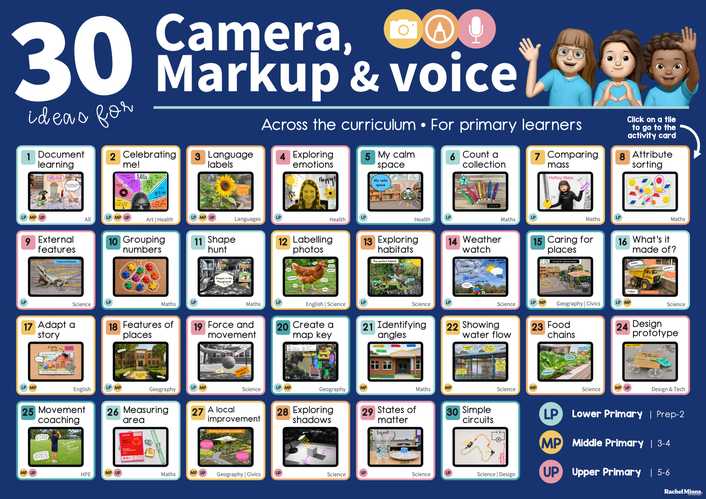
The ideas range from documenting learning, going on shape hunts and exploring habitats, through to modelling food chains, analysing movement, evaluating design prototypes and proposing improvements to local spaces.
Each activity follows the same simple process:
📸 Camera – Capture a photo of something in the world around you.
✏️ Markup – Draw, label, highlight or annotate directly onto the photo.
🎤 Voice (optional) – Explain your thinking, share your discoveries or talk through your learning.
These aren't intended to be 30 lessons that teachers work through from beginning to end. Think of them as a bank of ideas to spark your own thinking about how Camera and Markup might fit into the learning already happening in your classroom.
I've included suggested year levels and curriculum areas, along with ways to extend or adapt each activity. Of course, you'll know your students and curriculum best, so use your professional judgement to adapt these ideas to suit your learners and units of work.
New to Markup? I've got you covered!
Embedded in this resource are links to a Markup lesson... taught by me!! There are 3 different lessons to choose from depending on the audience:

- For teachers: Learn how to access and use the Markup tools yourself.
- For lower primary students: A student-facing lesson where I teach your younger learners how to use Markup.
- For upper primary students: A separate lesson designed for older students.
You could play one of the student lessons on your classroom screen and have your students follow along on their own iPads. Pause, practise and revisit the skills whenever you need to.
There's also a printable poster and bookmark with visual instructions for accessing Markup in the Photos app.
Adding Voice
For me, this is where these simple projects become even more powerful, particularly when we think about inclusive learning. An annotated image can tell us so much about what a student knows, but giving them the opportunity to explain their thinking in their own words can reveal an even deeper level of understanding.
For some learners, recording their voice offers a way to share knowledge that might be difficult to communicate through writing alone. It can also be a wonderful tool for capturing student reflections or teacher–student conversations as part of assessment.
There are a number of ways you can add voice to a photo, and I have suggested my 2 favourite within the resource (with video demonstrations for both):
iPad Screen Recording: A built-in tool that allows students to record their screen and voice as they talk through their annotated photo. No additional apps needed!
Photo Story: A free app that I created with a very simple purpose – to add voice to a photo. It's designed with children in mind, requires no logins, collects no personal data and keeps their creations on their device.

What's available to download?
1. Complete Interactive Guide
This is the full resource, including:
- A one-page overview grid of all 30 activities, with clickable tiles that take you directly to the corresponding activity card.
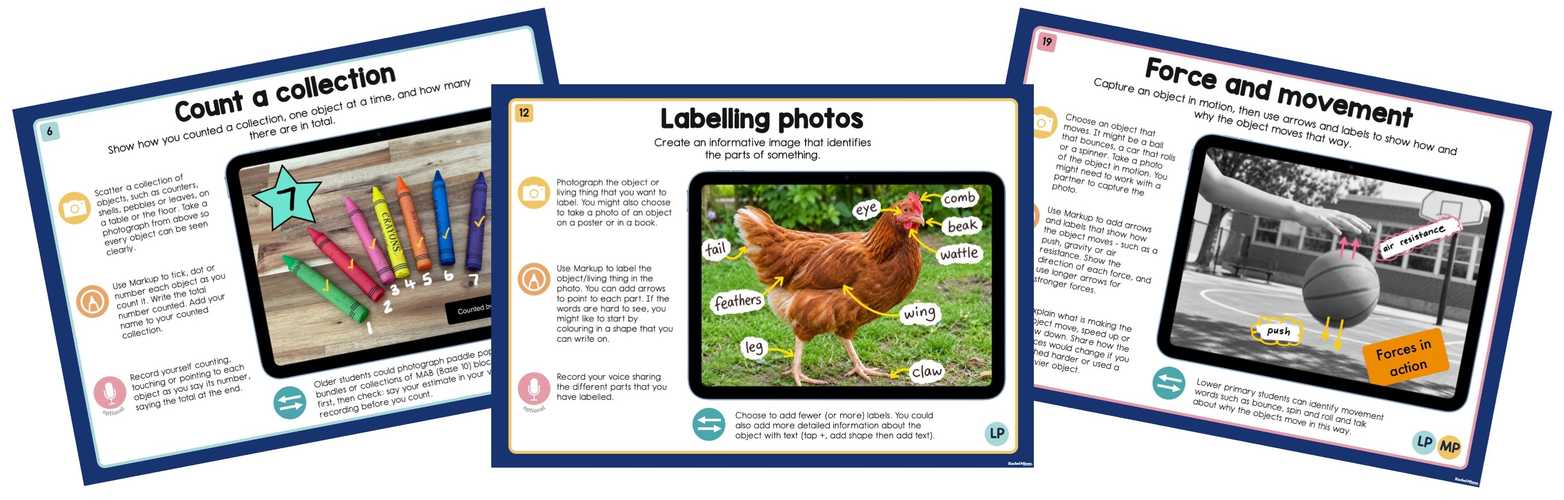
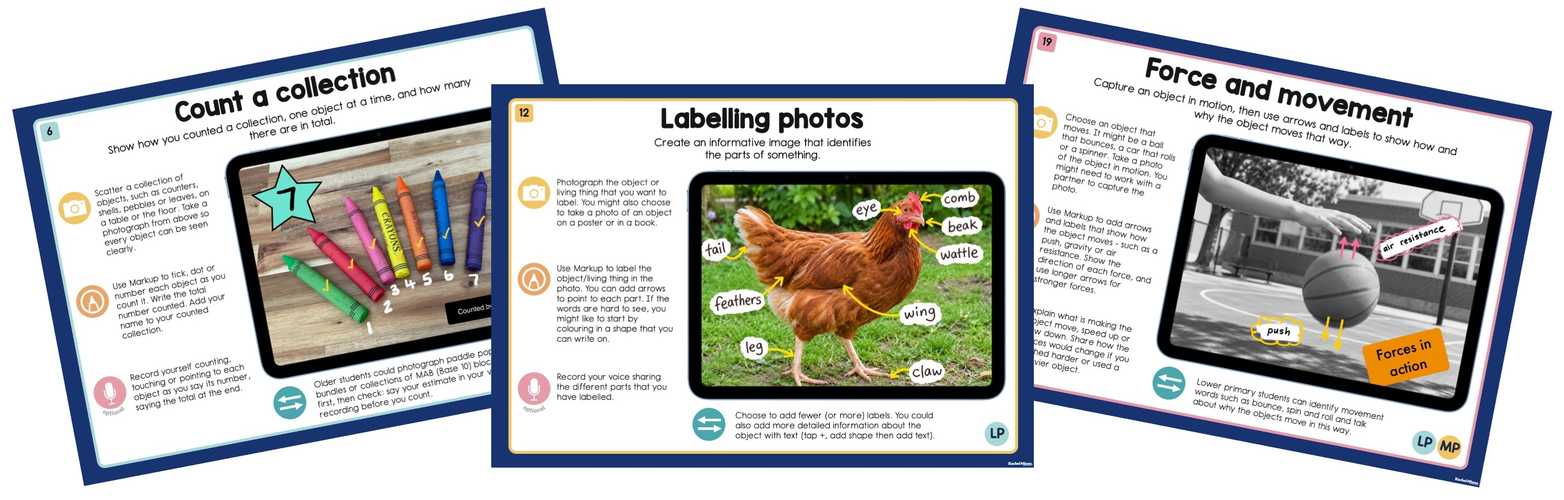
- 30 full-page activity cards, each with an example image, suggested steps for Camera, Markup and voice, and an idea for adapting or extending the learning.
- A Teacher Guide with links to video demonstrations.
- A printable poster and bookmark showing students how to access Markup in Photos.
The interactive grid is a great starting point! Display it on your classroom screen to explore possibilities with students, or keep it on your own iPad to quickly jump between activities when planning.
2. Printable Activity Cards
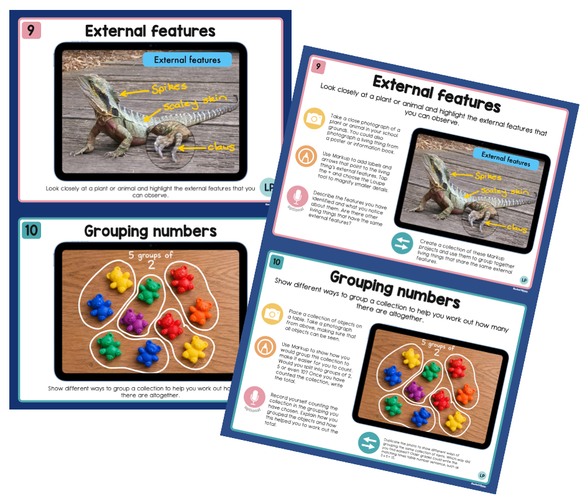
I've also included a separate PDF containing just the 30 activity cards, ready to print as A5 cards or double-sided.
These could be kept in a classroom resource box, used when planning a unit of work or shared with colleagues looking for fresh ways to incorporate iPad into learning.
I hope this resource encourages you to look beyond the App Store and explore what's already possible with the tools in your students' hands.
You don't need a huge range of different apps or 30 different workflows. Sometimes one simple skill, used in 30 different ways, is all it takes to open up new opportunities for creativity, communication and learning.
I'd LOVE to hear how you're using Camera, Markup and voice with your students.
Please share your ideas or examples in the comments below! 🙌🏻
NOTE - Downloads are coming over next 24 hours .... I just needed to publish the post so I can get a link (which I am adding as a QR code into the resource)
About the Author: This resource was created by Rachel Minns a teacher from Queensland, Australia, and an Apple Professional Learning Specialist. Rachel works with teachers and school leaders around the world, both online and in-person, supporting them to use technology intentionally, with a clear purpose, and a focus on inclusive learning. If you would like to learn more about the ways Rachel can support your school as an Apple Professional Learning Specialist, please email at rachel@techplayteach.com.






Attach up to 5 files which will be available for other members to download.